Product

How TwinClean finds look-alikes, and what it does with them

A plain account of every step: what is compared, what is recommended and why, and what happens when you remove something.

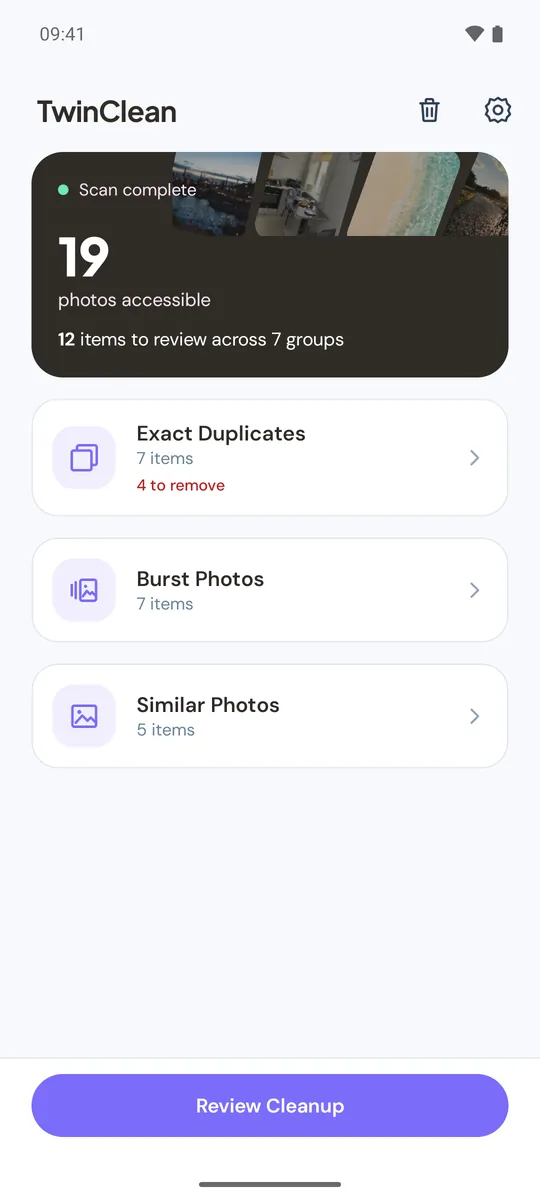
A scan in four stages

Each kind can be opened as soon as it is ready, so you do not wait for the last stage. Keep the app open while scanning; you can pause and resume later.

Indexing media

TwinClean lists the photos and videos it can access, then checks only files that could match.

Finding exact duplicates

Files of the same size are compared by content. Only identical files form a group.

Detecting burst photos

Shots taken in quick succession in the same album are checked for how alike they look.

Finding similar photos

Image fingerprints are compared, starting with your most recent photos.

Results are kept on your device. After the first scan, TwinClean shows the last result right away and compares only new or changed items. How long a scan takes depends on your library and your phone.

Three kinds, three sets of rules

A file that fits more than one kind is counted once: exact duplicates first, then burst photos, then similar photos.

Exact Duplicates

Same file, byte for byte

  • Grouped whenThe content is identical, whatever the name, folder or date. Photos and videos.
  • RecommendedThe oldest item in your library.
  • Pre-selectedOther copies on Android 11 and newer, for you to check. Nothing on Android 10 and below.
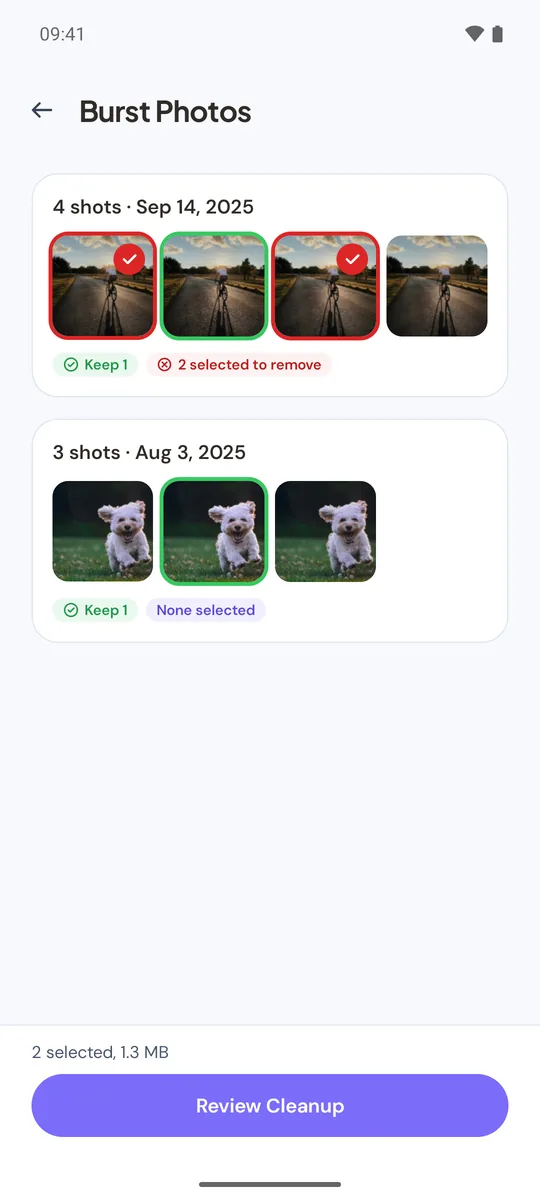
Burst Photos

Taken seconds apart

  • Grouped whenThree or more shots in the same album, each within 2 seconds of the next, that look alike.
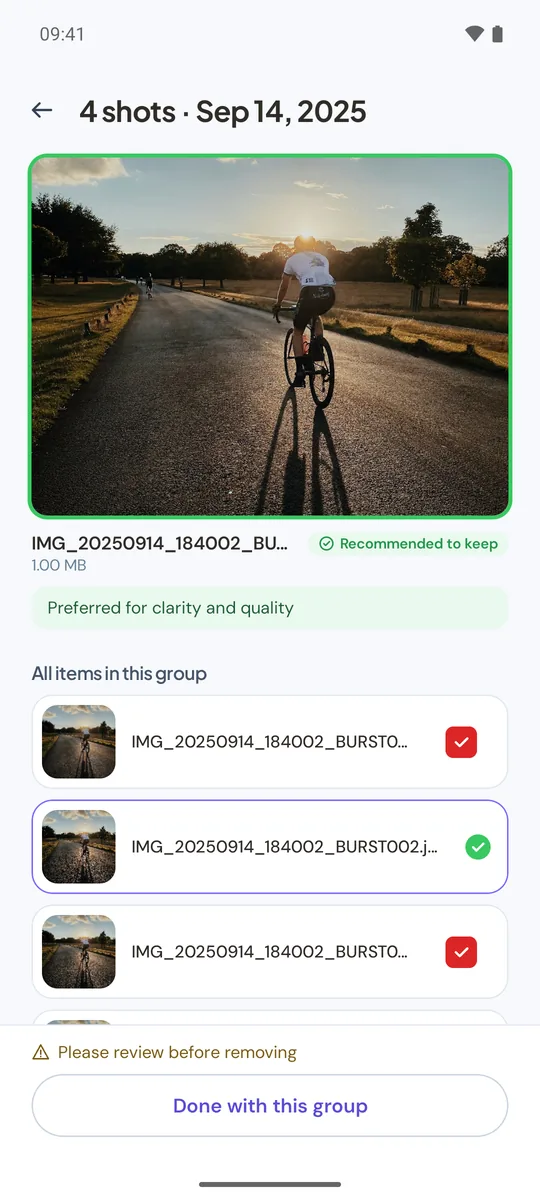
  • RecommendedThe one that comes out ahead on clarity and quality.
  • Pre-selectedNothing. Look first, then choose.

Similar Photos

Look alike, not the same file

  • Grouped whenSame scene, taken within 10 minutes. The further apart in time, the closer the match has to be.
  • RecommendedChosen the same way as for burst photos.
  • Pre-selectedNothing, on any Android version.

Screenshots, screen recordings, RAW files, GIFs and images smaller than 50 KB are only checked for exact duplicates. Videos are compared for exact duplicates only. The match is deliberately cautious, so some look-alikes are missed, and it can be wrong.

Compare a group

Why this one?

Every group opens with a recommended keep and the reason behind it. For burst and similar photos, TwinClean compares in this order:

  1. Sharpness
  2. Exposure
  3. Resolution
  4. File size

A difference only counts when it is clear, about 10 percent or more. If everything is close, the earlier photo is recommended. Favorites are recommended to keep and never selected for you. If you keep another item instead, your choice stays.

Oldest item in library Preferred for clarity and quality Favorite, kept first Your choice
Comparing a group of burst photos: the sharpest shot is recommended to keep, two others are selected to remove
Burst photos taken 0.45 s apart. The sharpest one is recommended.
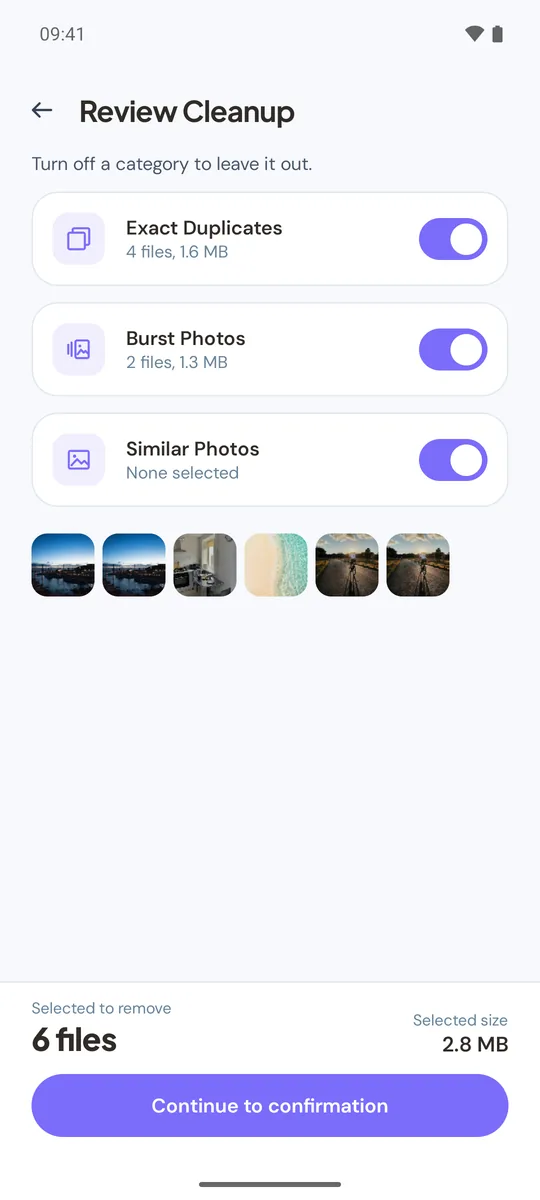
Review Cleanup screen with a switch for each category and the selected total
Review Cleanup, before the Android dialog.
Before anything moves

One place to check it all

Review Cleanup gathers what you selected in every category and shows the total before you continue. Turn a category off to leave it out.

  • Android asks you to confirm in its own dialog. If you cancel, nothing is removed and your selection is unchanged.
  • Before removing, TwinClean checks that the item you keep is still there. If it is not, that group is skipped.
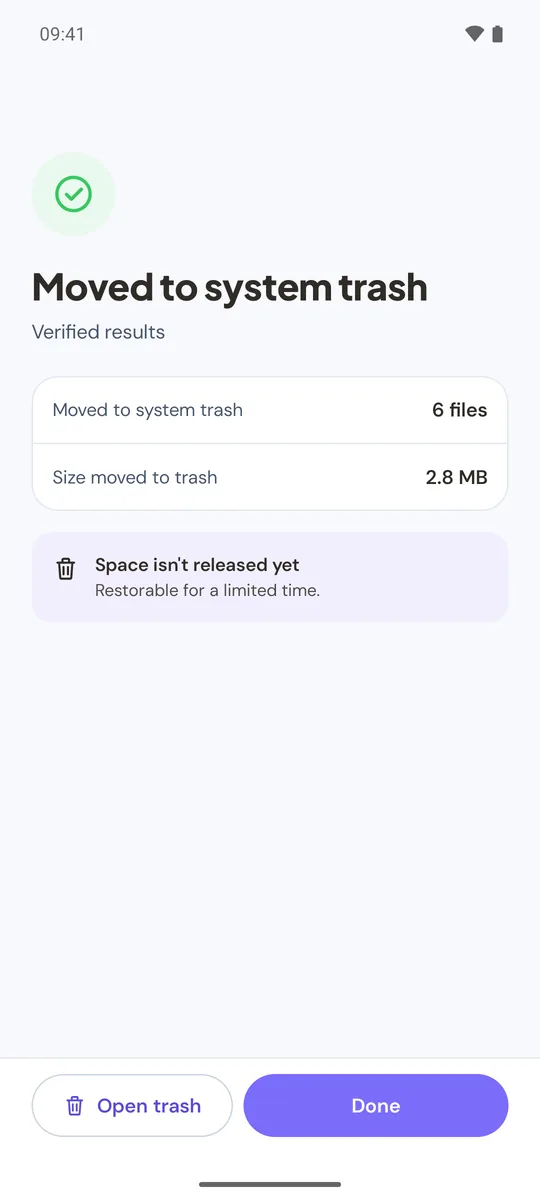
  • The result screen shows verified results: moved to system trash, permanently deleted, or not processed.
In the app

See it on a phone

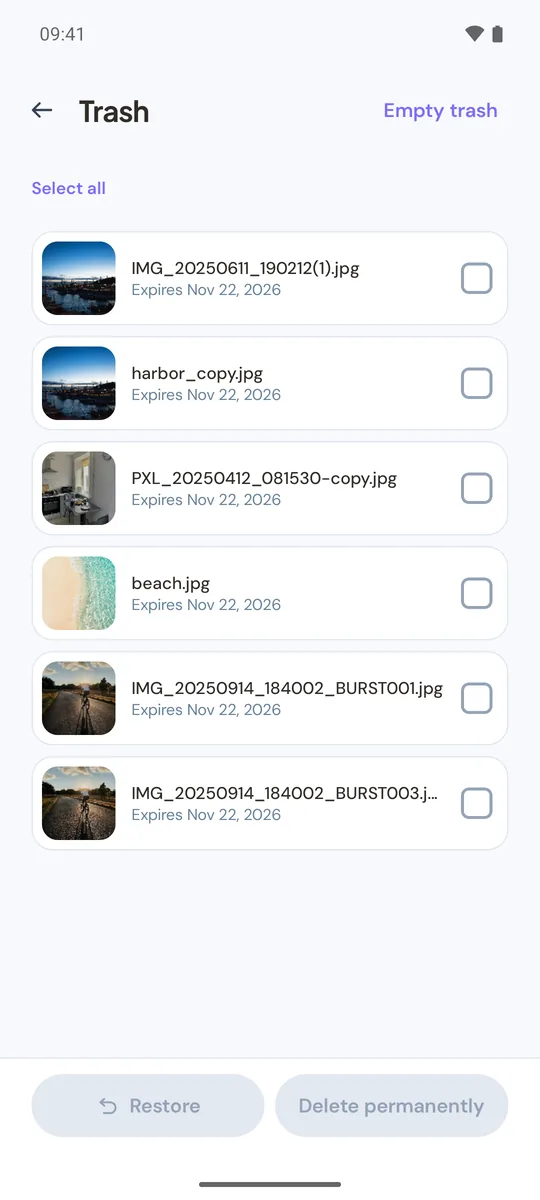
Screenshots from the Android app (English, Android 15). Photos, counts and sizes are samples.

Trash and restore

Android 11 and newer, and Android 10 and below

TwinClean works on Android 8 and newer. Removal differs by version, and the app tells you which applies before anything is deleted.

Android 11 and newerAndroid 10 and below
RemovingMoved to the system trash, restorable for up to 30 daysDeleted straight away and cannot be restored. The confirmation says so.
Trash screenLists the items TwinClean moved, with expiry dates. Restore, delete permanently or empty the trash.Not available
Exact DuplicatesOther copies are pre-selected for you to checkNothing is pre-selected
Burst and Similar PhotosNever pre-selected
Space releasedCounts only what was actually deleted and checked as gone. Items in the trash still take up space until they are deleted.

14 languages

Choose the app language in Settings at any time. Each language is listed in its own name. English is the default.

  • English
  • Deutsch
  • Español
  • Français
  • Italiano
  • Português
  • Русский
  • 日本語
  • हिन्दी
  • Bahasa Indonesia
  • Bahasa Melayu
  • ไทย
  • Tiếng Việt
  • Filipino

What you need

  • Android8 or newer. Trash and restore need Android 11 or newer.
  • AccessPhotos and videos. On Android 14 and newer, you can allow selected photos only.
  • Looks atPhotos and videos only. Not app caches, system files or other apps' data.

See the matches in your own library.

Every number TwinClean shows comes from your phone.

Google PlayComing soonRead the FAQ